User manual
From install to
your first shared map
Everything the app can do, in the order you will meet it, with screenshots. Every setting is given with its path in the app — Settings › Location — so you can follow along with your phone in hand.
1. Five-minute setup
Everything sharing needs to work without gaps is on this list. Do it in order the first time you open the app; the details are in the sections linked.
- Sign inWith Google; on iPhone, with Apple as well. → Section 2
- Set location access to AlwaysWhen the app asks: Always on iPhone, Allow all the time on Android. → Section 12
- Set battery usage to Unrestricted ANDROIDSettings › Location › Background activity takes you straight to the right screen. → Section 12
- Create a recovery code and keep it safeSettings › Recovery Code. The only way back if you lose your phone. → Section 14
- Add your first personScan or type the invite code of the person who will see you. → Section 5
2. Signing in and your name
Install GeoTrackMe from the App Store or Google Play, where it is listed as GeoTrackMe: Location Sharing. It needs iOS 17 or later on iPhone and Android 7.0 or later on Android.
The first screen asks you to sign in with Google; on iPhone you can also sign in with Apple. There is no password to invent, forget or have stolen from us, because we never hold one.
The name your friends see
Your name comes from your Google or Apple account the first time you sign in. To change it, tap your profile row at the top of Settings and save a new name. It stays until you change it — your Google or Apple name will not overwrite it later. To go back, use Use my Google name (on iPhone, Use my Google or Apple name) on the same screen.
What is stored about you
Your name, profile photo and email address come from the account you sign in with. Your email identifies your account — it is not used for anyone to find you.
3. Finding your way around
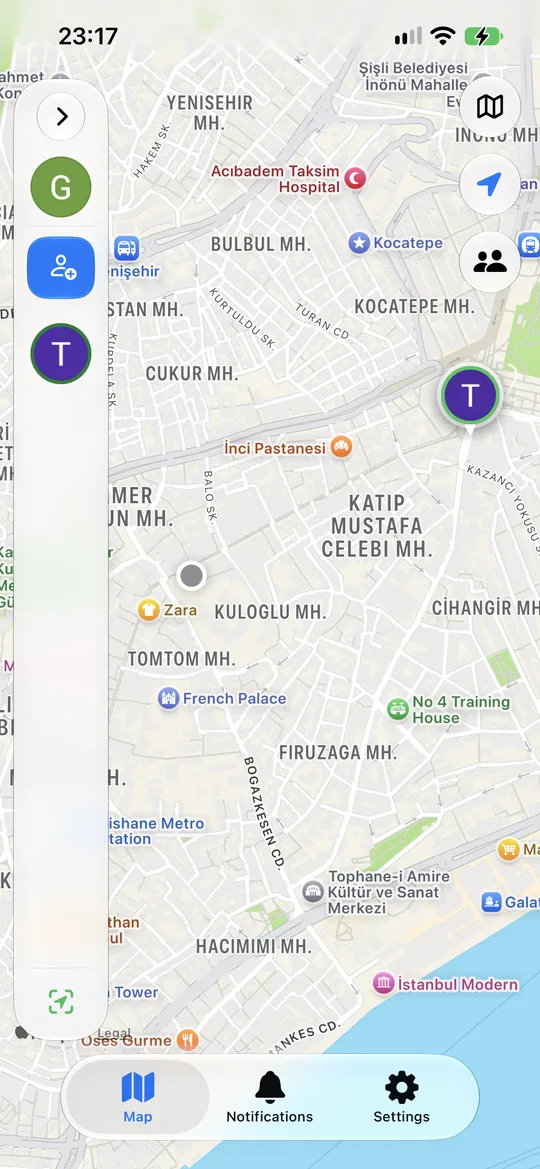
After signing in you land on the map. The first time it is empty and your location is not shared with anyone; sharing only starts once you invite someone and they accept.
 1
2
3
4
5
6
7
1
2
3
4
5
6
7
- Friend rail. Shows you and everyone who shares their location with you; tap the arrow at the top to expand it.
- Add friend. Where you send an invitation and show your own code.
- A friend's marker. Tap it for their name, when it was last updated, and Get Directions.
- Map type. Standard, satellite or hybrid; Android also has terrain.
- My location. Centres the map on you.
- Fit everyone. Zooms so everyone on your list is in view.
- Tabs. Map, Notifications — where invitations arrive — and Settings.
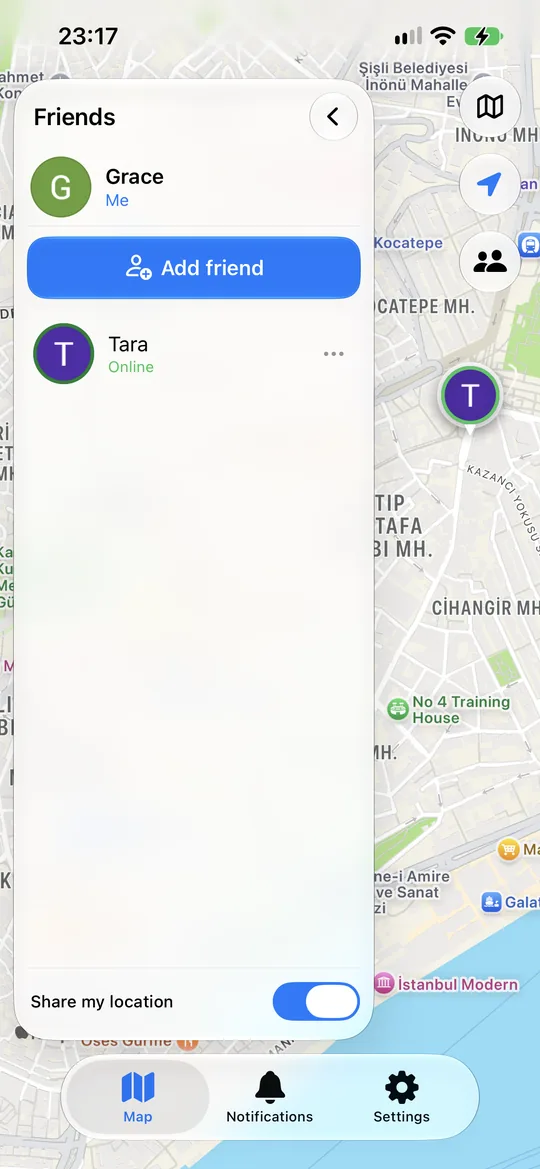
With the rail open
 1
2
3
4
1
2
3
4
- Collapses the rail so the map is full screen again.
- Add friend — scan or type an invite code, or show your own.
- Tap a person and the map focuses on them. The ⋯ next to them opens their person card. The line under their name says how fresh their location is.
- Share my location — the main switch for everyone; Section 10.
4. Your invite code
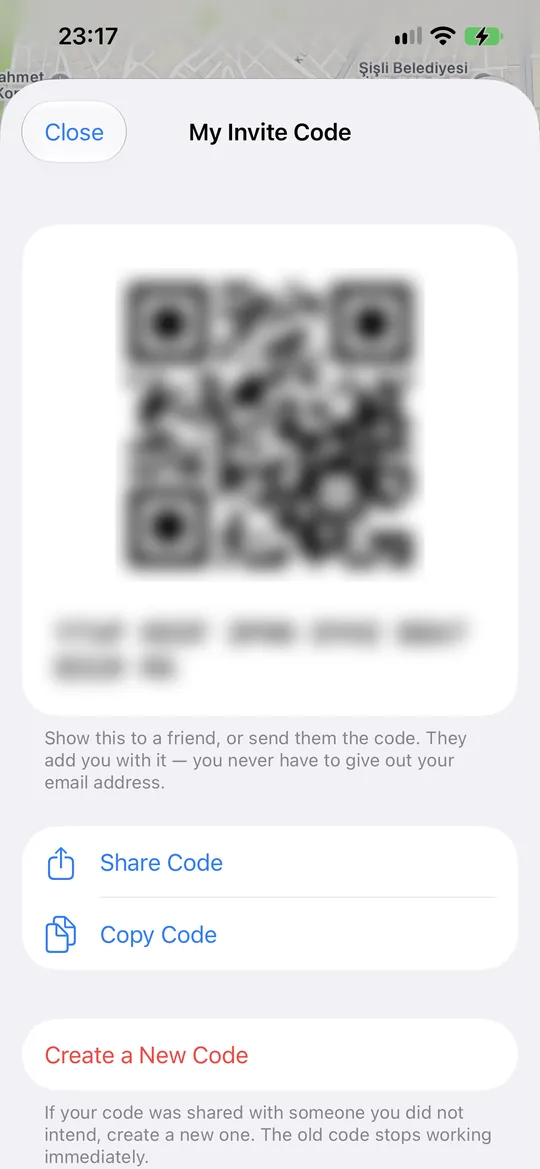
Every account has an invite code. When someone wants to show you their location, they use this code; there is no search by email or phone number. Open yours from Add friend › Show my code.
 1
2
3
4
1
2
3
4
- QR code and text code. They are the same thing: someone next to you scans the QR, someone far away gets the text. Spaces and dashes in the text are ignored.
- Share Code — opens your phone's share sheet; pick a messenger you already trust.
- Copy Code — puts it on the clipboard.
- Create a New Code — if the code reached someone it should not have. The old code stops working immediately; people already on your list are not affected.
5. Adding someone
Sharing is one-way, and it is always started by the person whose location will be shared. To let Emma see you, you use Emma's code:
- Tap Add friend on the map.
- Use Scan their QR code, or paste the text code they sent you.
- Tap Send Request. Now it waits for them to accept; nothing is shared in the meantime.
Sending invitations is free and unlimited on every plan. Once they accept, Settings › People who can see me shows Can see your location; while waiting it says Waiting for them to accept your invitation.
If you both want to see each other
Each of you sends a separate invitation with the other's code. Two invitations, two approvals. There is no button that makes sharing mutual in one tap — so nobody is ever seen by someone they did not invite themselves.
Shortcut: if someone already shares with you, Invite them to see your location on their person card sends an invitation without asking for a code.
6. Answering invitations
When someone uses your code, their invitation arrives in the Notifications tab. Nothing is shared while it waits there.
- Accept — they are added to your map and you see them for as long as their sharing is on. Your plan limit is checked at exactly this moment: if you are at the limit, the app opens the upgrade screen.
- Reject — the app asks once to confirm. Someone you reject cannot invite you again, and sees on their side that the invitation was declined.
Rejected someone by mistake?
In Notifications › Declined, tap Undo next to them. The rejection is lifted and they can invite you again.
7. What the map tells you
The line under each person's name tells you how fresh their location is. The thresholds are identical on iPhone and Android, so the same person never looks different on two phones.
These states are shown before age is considered:
| You see | What it means |
|---|---|
| On hold — plan limit | Your plan no longer covers this many people; this person is on hold and their location hidden. Upgrade, or remove someone and Reactivate this person. |
| Sharing paused | They turned sharing off — for everyone or just for you. Not even their last location is shown. |
| Location cannot be read | The encrypted location could not be decrypted on this device. Usually you set up a new phone or reinstalled the app, and the person sharing needs to approve your new device (Section 13). |
| Location unknown | They have not sent a location yet — for example, the invitation was only just accepted, or their location permission is off. |
8. The person card
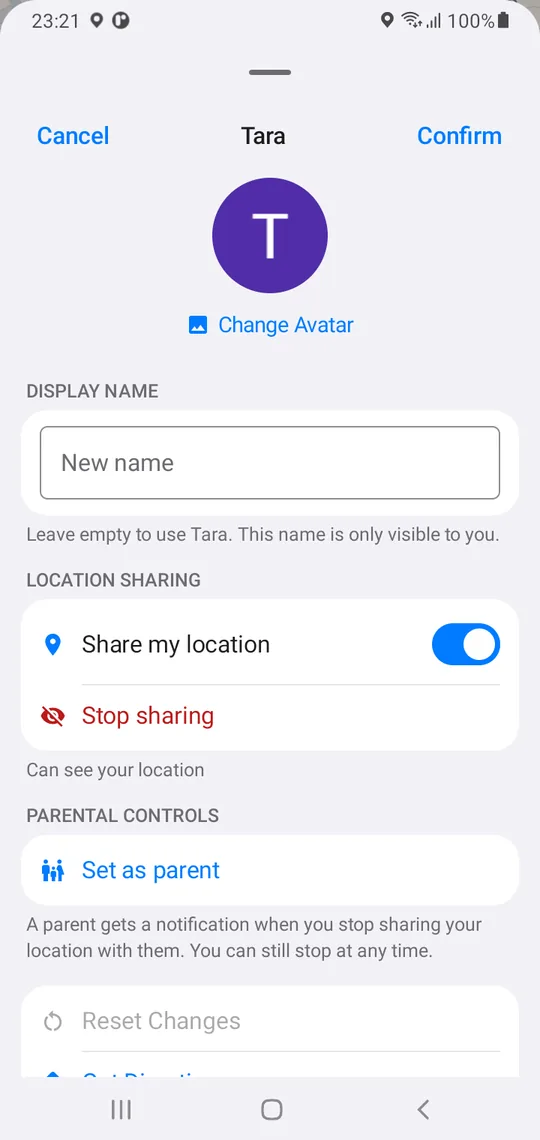
Tap the ⋯ next to someone on the rail to open their card. The card handles both directions at once: how you see them, and what you share with them.
 1
2
3
4
5
6
1
2
3
4
5
6
- Change Avatar. Pick a photo from your gallery. It stays on your phone and is never uploaded.
- Display name. Call them what you actually call them. Only you see this name; leave it empty to use their own.
- Share my location. Pauses for this person only. They stay on your list, and it picks up again when you switch it back on.
- Stop sharing. Ends sharing with this person completely; your location key is replaced so the old one cannot read new updates. You can invite them again later.
- Set as parent. Section 9.
- Reset Changes. Returns the nickname and photo to their own profile.
Further down the card are Get Directions, Delete Friend — which removes them from your map — and Verify Devices (Section 13).
If you do not share with this person yet, items 3–5 are replaced by Invite them to see your location, which sends them an invitation without asking for a code. The parent option only appears after they have accepted your invitation.
9. Parent notifications
The person who shares their location can mark someone who sees them as a parent. Being a parent does not lock sharing; the person sharing can always stop. The parent simply finds out.
- The person sharing taps Set as parent on the parent's person card and confirms.
- On the parent's side, the card shows You are a parent.
| If the person sharing… | The parent is notified |
|---|---|
| Turns sharing off — with the main switch in Settings or just for the parent | "… stopped sharing their location" |
| Turns sharing back on | "… is sharing their location again" |
| Taps Remove as parent | "… removed you as a parent" |
| Ends sharing with the parent completely (Stop sharing) | "… removed you" |
In the parent view, old locations are shown in orange and red, and the exact date is added to the relative time (Section 7): instead of "17 hours ago" you see when it was. The parent can turn these notifications off at any time with Stop being a parent on their own card.
For the school run
Your child sends an invitation from their phone using your code and you accept; then your child sets you as a parent. You hear about it if sharing goes off, and your child can always see what is being shared.
10. Settings and sharing
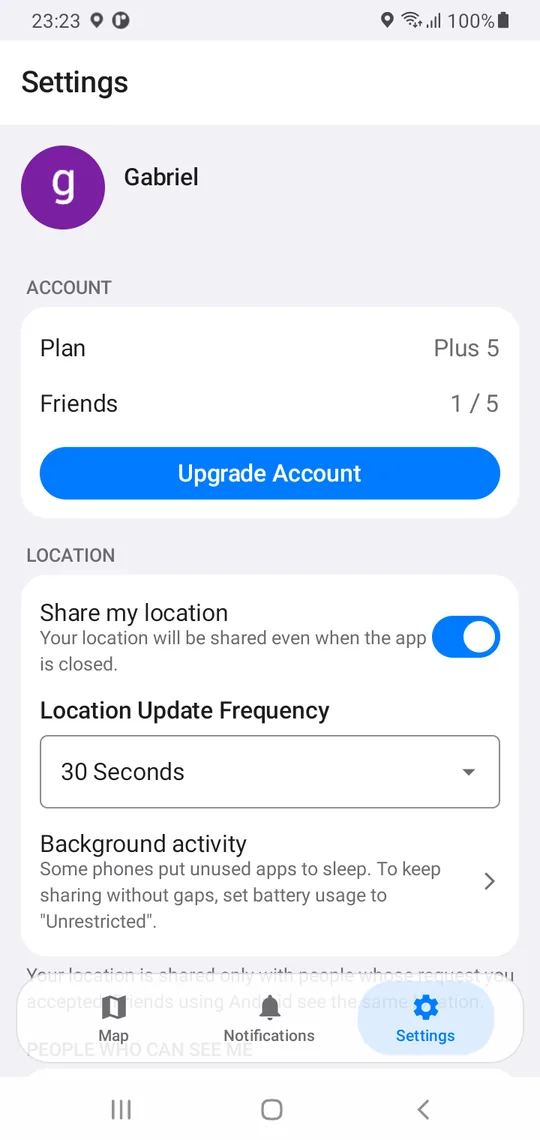
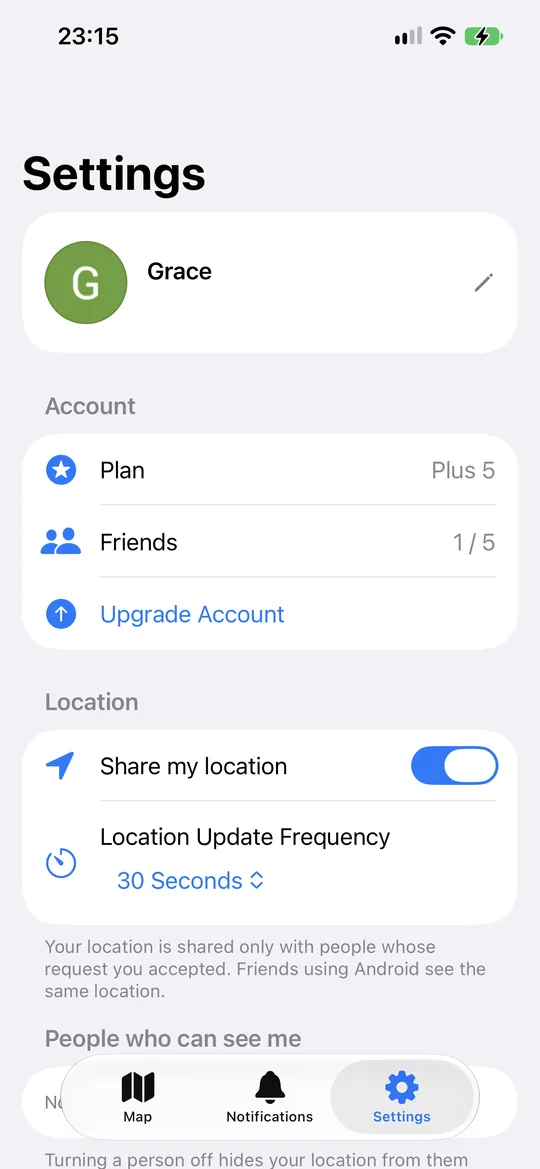
The Settings tab has the same sections on both platforms: Account, Location, People who can see me, Security, Recovery Code, Language and About. If you are on a family plan, a Family section appears too.
 1
2
3
4
5
1
2
3
4
5
 1
2
3
4
1
2
3
4
- Plan and Friends. "1 / 5": how many people you are seeing and how many your plan allows.
- Upgrade Account — Section 15.
- Share my location. The main switch for everyone; below.
- Location Update Frequency — Section 11.
- Background activity (Android only) — Section 12.
Share my location
Turn it off and you disappear from every map at once — including your last known position, which is deleted rather than left frozen on screen. Turn it back on and you start from wherever you are at that moment. Anyone you have set as a parent is notified that you turned it off.
Your screen lock guards the switch
Turning it on or off asks for Face ID, Touch ID, your fingerprint or your device passcode, so someone holding your unlocked phone cannot change it quietly. This protection is managed in Settings › Security › Screen Lock and is on by default. If your phone has no screen lock, you will be asked to set one up first.
People who can see me
The complete list of who sees your location. Switch one person off and your location disappears for them alone, immediately; nobody else is affected. To vanish from everyone for a while, use the main switch; for one person, use this list.
11. Update frequency
Settings › Location › Location Update Frequency: how often your location is sent. The options are 5 seconds, 15 seconds, 30 seconds, 1 minute, 5 minutes and 10 minutes. It is the strongest lever you have over battery use.
| Frequency | Good for |
|---|---|
| 5–15 seconds | Meeting up right now, driving in convoy, a crowded venue |
| 30 seconds – 1 minute | The way home, the school run, a trip you are actively following |
| 5–10 minutes | All-day peace of mind — a hike, a long drive, a relative who lives alone |
The setting belongs to your device; the other person does not know your frequency and cannot change it. Someone set to 10 minutes can naturally show "8 minutes ago" — that is not a fault.
12. Permissions and background
GeoTrackMe explains every permission before asking for it.
- Location — always. Without background access, sharing stops the moment your screen turns off. Choose Always on iPhone and Allow all the time on Android.
- Notifications. For invitations, device approvals and parent notifications. On Android, a persistent "GeoTrackMe Active" notification is also shown while sharing; the system requires it of location apps running in the background.
- Camera, only while scanning a QR code. Typing the code works just as well, so this one is optional.
To change a permission later:
- iPhone: Settings › GeoTrackMe › Location › Always
- Android: Settings › Apps › GeoTrackMe › Permissions › Location › Allow all the time
Android: battery usage "Unrestricted"
Some phones — Xiaomi, Samsung, Huawei and Oppo in particular — put unused apps to sleep even when permission is granted. On such a phone your location is not sent while the app is closed. If GeoTrackMe detects that your phone is restricting it, a Background restricted notice with a Fix button appears on the map.
- In GeoTrackMe, tap Settings › Location › Background activity; your phone's matching screen opens.
- Set battery usage to Unrestricted (on some phones No restrictions or Don't optimise).
- Come back; the warning on the row disappears.
To do it by hand: Settings › Apps › GeoTrackMe › Battery › Unrestricted. Menu names vary a little by manufacturer.
If location permission or the device's location service is off, the app shows a small strip on the map instead of a blocking dialog; you can keep looking at others while you yourself are invisible.
13. Encryption and devices
Your location is encrypted before it leaves your phone and can only be opened on the devices of people you approved. The server — and so we — cannot read it.
When a friend adds a new device
Because envelopes are written per device, when someone who sees you sets up a new phone, that phone cannot see you until you approve it. That way, someone who takes over their account cannot quietly add a device of their own.
Only approve if the person really did set up a new phone; if you are not sure, ask them first. The same question can arrive as "… replaced a device key" — for example after they delete and reinstall the app.
Verify Devices
Verify Devices on the person card lists short fingerprints for your device and theirs. When you are together, read your row to them and have them find it on their list; then swap. A row neither of you recognises means someone is in between.
14. Changing phones
First: a recovery code
Your encryption keys live on your phone. If you lose it, a recovery code is the only way to read encrypted locations on a new phone — and the code can only be created while you still have the phone.
- Settings › Recovery Code › Create Recovery Code.
- The code is shown once and is never stored on our servers. Use Copy Code to save it in your password manager, or write it down.
- Tick I have saved this code and tap Done. The row now reads Recovery code is active.
When you sign in with the same account on a new phone, the app asks for it: Enter your recovery code › Restore Access. If you renew your code, the old one stops working and people on your list see "… renewed their recovery code".
If you lose the code
Your account stays, but your new phone creates its own keys, and the people who share with you need to approve your new device (Section 13). Until they do, you cannot see them.
Moving sharing to a new phone
Your location is shared from one device at a time. If you are signed in on two phones, you choose which one does the sharing:
15. Plans and purchases
Downloading the app is free. Your plan sets how many people you can see and whether you see ads. How many people you share your own location with is not limited.
| Plan | People you can see | Ads | Type |
|---|---|---|---|
| Free | 1 | Yes | — |
| Remove Ads | 1 | No | One-time purchase |
| Plus 3 | 3 | No | Yearly subscription |
| Plus 5 | 5 | No | Yearly subscription |
| Plus Unlimited | Unlimited | No | Yearly subscription |
| Family | 5 each, up to 6 accounts | No | Yearly subscription |
Plans are under Settings › Upgrade Account. Purchases go through the App Store or Google Play, so refunds, billing and cancellation follow Apple's or Google's rules. The price is the one the store shows for your country.
Family plan
The person who buys the plan adds up to 5 people from Settings › Family › Invite. Each invited person taps Accept invitation; every member gets no ads and their own list of 5. A member can Leave family plan at any time.
If your plan drops
If your subscription ends or you move to a smaller plan, the people above the limit are not deleted; they go On hold — plan limit. Upgrade, or remove someone and Reactivate the person you want.
Reinstalling, and the two stores
If you reinstalled the app or got a new phone, use Restore Purchases on the Upgrade Account screen. Plans belong to your account: a plan bought on iPhone also applies on Android. If you already have a subscription in the other store, the app warns you before you pay twice.
16. Language, map and ads
- Language — Settings › Language. Nine languages: English, German, Spanish, French, Italian, Dutch, Portuguese, Russian and Turkish. It follows your phone by default; changing it in the app leaves the rest of the system alone.
- Map type — the layers button at the top right of the map (Section 3). Light and dark appearance follow your system setting.
- Directions — Android opens Google Maps; iPhone opens Google Maps if it is installed, otherwise Apple Maps.
- Ad choices — the free plan shows ads. You can change consent for personalised ads at any time in Settings › About › Ad Privacy Options. The ad provider never sees your location; it is encrypted.
17. Deleting your account
Settings › About › Delete Account. Your profile, friend list, last known location and invite code are removed permanently; this cannot be undone. You may be asked to sign in again to confirm it is you.
If the app is no longer on your phone, you can do the same on the web: Delete my account.
Deleting your account also ends every sharing relationship you are part of; people who could see you simply stop seeing anything. Deleting your account does not cancel a paid subscription — cancel it in the App Store or Google Play subscriptions screen.
18. Troubleshooting
A friend's location is not updating
Look at the line under their name (Section 7). "Sharing paused" means they turned sharing off. If the time keeps growing, their phone is off, has no signal, or is set to 10 minutes. If they use Android, ask them to set battery usage to "Unrestricted" (Section 12).
Nobody can see me
Check in order: is Share my location on, is location access set to Always, is the phone's location service on, and on Android is battery usage "Unrestricted"? The strip on the map tells you which one is missing. Then check that the person's switch is on in People who can see me.
It says "Location cannot be read"
This device has not received the envelope that opens that person's encrypted location yet. If you set up a new phone or reinstalled the app, ask them to tap Approve on the "… added a new device" question on their phone. If you have a recovery code, enter it first (Section 14).
The code I was given does not work
If it says "That invite code did not match anyone", the code may have been renewed; ask for the current one. If the person rejected your invitation before, you cannot send another; only they can undo the rejection.
I invited someone but cannot see them
Your invitation lets them see you, not the other way round (Section 5). To see them too, they send you an invitation with your code and you accept.
"This device couldn't be verified"
To protect location data, GeoTrackMe only runs an unmodified copy of the app from the official store on an unmodified device. Reinstall from the App Store or Google Play and tap Try again. The app does not run on Android phones with an unlocked bootloader or a custom ROM.
My battery drains faster than I expected
Lengthen the update frequency. Going from 5 seconds to 1 minute cuts location reads twelvefold.
Still stuck?
The FAQ covers the questions people ask most, and the privacy policy spells out exactly what is stored and for how long.